Animoto is an excellent online program that allows you to make quick and easy videos made out of pictures or photos - here is a video I made out of pictures I found on Flickr. You don't have to download any software, and it is free to make a 30 second video. These short videos are great for introducing a subject to students, giving them some visuals to start them thinking about a topic, or using as part of a more formal presentation. Because Animoto is so easy to use, it is also a great tool for students to use for project work. I love it for making personal videos made out of family photos such as this one I made for my daughter's 21st birthday.
Once you have made the video, you can post it onto YouTube or embed it into your blog, or share the link to the video on Facebook or Twitter.
If you want to be able to make longer videos, you have to pay for the 'pro' version. It isn't very expensive so you may feel it is worth paying so your department has access to the account. The other advantage of the 'pro' account is that you can download your video as an mp4 file - with the free account, you can only access the video on the Internet. However, as an educator, you can apply to have a free educator's account with all the advantages of the 'pro' account without having to pay for it.
Here is a video that shows you how to make an Animoto video.
http://www.youtube.com/watch?v=48194ShehLI&feature=PlayList&p=DFC79C73F7978F30&playnext=1&playnext_from=PL&index=2
Please leave us details of videos you make with Animoto - we'd love to see them.
Showing posts with label 'How to'. Show all posts
Showing posts with label 'How to'. Show all posts
Thursday, March 18, 2010
Finding free music to add to presentations, videos and so on
 When you add music to presentations or videos, you must be very careful that you are not breaking copyright - you are probably breaking copyright if you use music from your personal collection of CDs.
One of the places I recommend to find free music for download is Jamendo. This is a website where musicians leave their music for others to download and share under Creative Commons licence. You can find music in most genres - jazz, classical, easy listening, electronic, dance, hip-hop.
Have a look at this post by Richard Byrne for more information, and other places to look for free music and sound effects.
Is there any web site you'd recommend to find free music for presentations etc?
Wednesday, March 17, 2010
How to use Jing to take a picture of your computer screen
Jing is a free software that you can download onto your computer which allows you to take pictures of your computer screen. This is really useful if you want to show students how to do something on the computer, like access a resource on Moodle. I like Jing because it allows you to add arrows and text to an image, to make it clear exactly what you are trying to point out or say - I have used Jing to illustrate my instructions in this post.
The first 4/5 minutes or so of this video will show you how to download Jing onto your computer.
http://www.youtube.com/watch?v=b_1d_OretsA
Here is a video I have made to show you how to use Jing once you have downloaded it onto your computer.
http://www.youtube.com/watch?v=s08yIBv2zWI
Can you recommend any other tools to do similar work?
The first 4/5 minutes or so of this video will show you how to download Jing onto your computer.
http://www.youtube.com/watch?v=b_1d_OretsA
Here is a video I have made to show you how to use Jing once you have downloaded it onto your computer.
http://www.youtube.com/watch?v=s08yIBv2zWI
Can you recommend any other tools to do similar work?
Tuesday, March 9, 2010
How to take a picture of your computer screen
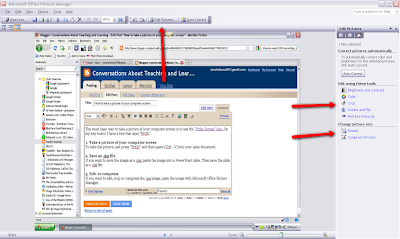
The most basic way to take a picture of your computer screen is to use the "Print Screen" key. On my key board I have a key that says "PrtSc".
 4. Compressing an image
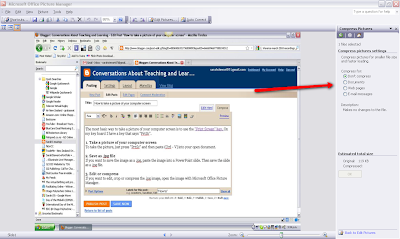
If you wish to make the image suitable to put into Moodle, a wiki or blog and you are not sure what size to make it, use the "compress" facility. This will automatically make your image the suitable size for a document, web page or email - which ever you specify.
Do you have any tips for taking screen shots?
1. Take a picture of your computer scree
To take the picture, just press "PrtSc" and then paste (Ctrl - V) into your open document.
2. Save as .jpg file
If you want to save the image as a .jpg file, paste the image into a PowerPoint slide. Then save the slide as a .jpg file.


3. Edit, crop or compress
If you want to edit, crop or compress the .jpg image, open the image with Microsoft Office Picture Manger. Click on crop, resize or compress- which ever action you wish to take. 4. Compressing an image
If you wish to make the image suitable to put into Moodle, a wiki or blog and you are not sure what size to make it, use the "compress" facility. This will automatically make your image the suitable size for a document, web page or email - which ever you specify.

Do you have any tips for taking screen shots?
Monday, March 1, 2010
How to make a word cloud with Wordle
Wordle is a website that allows you to turn words into a picture, otherwise known as a word cloud. You can also use Wordle to find themes from a report or document.
To do this, go to the Wordle website - go to 'create' and paste in the text you want to turn into an image.
Here is a Wordle image that was made from a blog post I wrote: "Virtual birthing unit goes international".

To do this, go to the Wordle website - go to 'create' and paste in the text you want to turn into an image.
Here is a Wordle image that was made from a blog post I wrote: "Virtual birthing unit goes international".

Thursday, February 18, 2010
How to turn Announcements and Digital Diary on "Insite" into emails
I don't know about you, but I keep forgetting to check 'Announcements' and 'Digital Diary' on the Otago Polytechnic internal website - Insite. So to solve this problem, I have set things up so all Announcements and items in Digital Diary come to me as emails into my Outlook Inbox.
To do this all you have to do is:
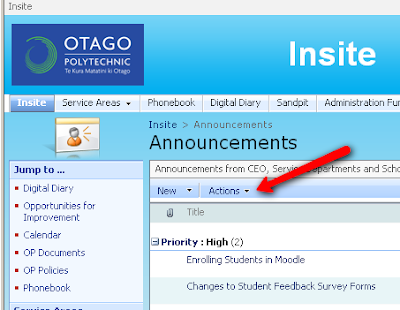
Go to 'Announcements' or 'Digital Diary' (the process is the same for both) on Insite. Click on the button that says 'Actions'.
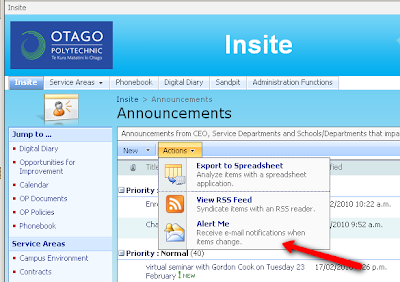
Click on the option that says 'Alert me'.
Decide what options suit you, about how and when the emails will be sent to you. Then, click onto 'OK'.
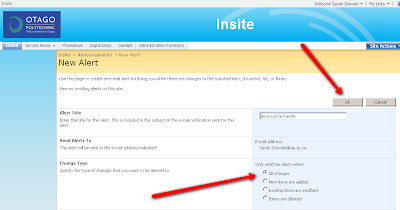
If you wish to cancel your alert at any time, go to the alert page and click onto '
'View my existing alerts on this site'.
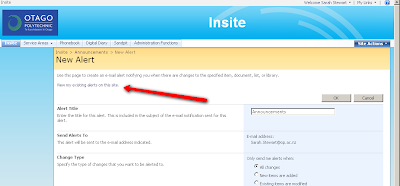
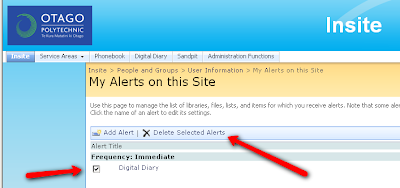
Then choose wish alert you want to delete and click onto 'Delete'.
To do this all you have to do is:
Go to 'Announcements' or 'Digital Diary' (the process is the same for both) on Insite. Click on the button that says 'Actions'.

Click on the option that says 'Alert me'.

Decide what options suit you, about how and when the emails will be sent to you. Then, click onto 'OK'.

If you wish to cancel your alert at any time, go to the alert page and click onto '
'View my existing alerts on this site'.

Then choose wish alert you want to delete and click onto 'Delete'.

Subscribe to:
Posts (Atom)


 Posts
Posts


